
March 2009
Mercedes-Benz Reset Service Indicator Guide
Contents
Models 203 and 209 (C-Class and CLK-Class)…….. 3
Models 166, X166, 172, 204, X204, 207, 212 and 218
(M-, SLK-, C-,GLK-, E-, and CLS-Class)…………….. 4
Model 211 Up to 8/31/2003 (E-Class)…………………. 5
Model 211 as of 09/01/2003 (E-Class)………………… 6
Model 219 (CLS-Class)………………………………………. 7
Models 221 and 216 (S-Class and CL-Class)…………. 8
Model 171 (SLK-Class)………………………………………. 9
Model 230 up to MY2007 (SL-Class)…………………. 10
Model 230 (SL-Class from MY2008 to Present)…… 11
Models 164, X164 and 251 (M-Class, GL-Class, and R-Class)…. 12
Models 203 and 209 (C-Class and CLK-Class)
Reset Service Indicator
- Insert key into ignition, switch to position “1“.
- Press buttons repeatedly until the mileage is displayed within the Multifunction display.
- Press cluster illumination button (1) 3 times in short succession. The battery voltage will be displayed and an audible signal will sound.
- Turn key in ignition to position “2”
- Press the up buttons until the service menu appears.
- Press cluster illumination button (1) once. The Oil Type menu is displayed.
- Use the buttons to select the oil used for the service.
- Press the up buttons to confirm. The display will show: “Reset Oil Confirmation. Push R-Button for 3 seconds”.
- Press and hold the cluster illumination button (1) for 3 seconds. The message “Service confirmed” is displayed.
Models 166, X166, 172, 204, X204, 207, 212 and 218 (M-, SLK-, C-,GLK-, E-, and CLS-Class)
Reset Service Indicator
- Insert key into ignition, switch to position “1“. The mileage counter has to be displayed.
- Press repeatedly until the TRIP option is highlighted.
- Press and hold and within 1 second press and hold both for 5 seconds. The shop menu is displayed.
- Press repeatedly until “Assyst Plus” is highlighted and confirm with .
Options “Service Data” and “Full Service” are displayed.
- Press until “Full Service” is highlighted. Confirm with .
- Press until “Conf. Full Serv.” is highlighted, confirm with . The display shows “Service carried out?.”
- Press to select “Yes”. Confirm with . “Cannot be undone” displays.
- Press until “Confirm” is highlighted. Confirm by pressing . The display reads “Full Service carried out”.
- Confirm by pressing .
Model 211 Up to 8/31/2003 (E-Class)
Reset Service Indicator
- Turn key in ignition swith to position “2.”
- Use buttons until the “Service” menu is shown in the Multifunction Display.
- Press and hold Reset Button R (1) until the Service Menu is displayed.
- Use buttons and to highlight option “Confirm”
- Press buttons or to confirm.
Model 211 as of 09/01/2003 (E-Class)
Reset Service Indicator
- Insert key into ignition, switch to position “1“.
- Press buttons repeatedly until the mileage is displayed within the Multifunction display.
- Press cluster illumination button (1) 3 times in short succession. The battery voltage will be displayed
- Press the up buttons until the service menu appears.
- Use the buttons to select menu option „Confirm“.
- Press until “Complete Service” is selected.
- Confirm “Complete Service” with button . The display will show “Service Confirmed”.
Model 219 (CLS-Class)
Reset Service Indicator
- Insert key into ignition, switch to position “1“.
- Press buttons repeatedly until the mileage displays within the
Multifunction display.
- Press reset button (1) 3 times in short succession. The battery voltage will be displayed
- Press the up buttons until the service menu appears.
- Use the buttons to select menu option „Confirm“.
- Press button until “Complete Service” is selected.
- Confirm “Complete Service” with button . The display will show “Service Confirmed”.
Models 221 and 216 (S-Class and CL-Class)
Reset Service Indicator
- Insert key into ignition, switch to position “1“. The mileage counter has to be displayed.
- Press and hold and within 1 second press and hold both for 5 seconds. The shop menu is displayed.
- Press repeatedly until “Assyst Plus” is highlighted and confirm with .
- Press until “Service carried out” is highlighted. Confirm with .
- Press to select “Service due”. Confirm with .
- Press to select “Full Service”. Confirm with .
Model 171 (SLK-Class)
Reset Service Indicator
- Insert key into ignition, switch to position “1“.
- Press buttons repeatedly until the mileage is displayed within the
Multifunction display.
- Press cluster illumination button (1) 3 times in short succession. The battery voltage will be displayed
- Press the up buttons until the service menu appears.
- Use the buttons to select menu option “Confirm“.
- Press until “Complete Service” is selected.
- Confirm “Complete Service” with . The display will show “Service Confirmed”.
Model 230 up to MY2007 (SL-Class)
Reset Service Indicator
- Insert key into ignition and switch to position “1”
- Press button until the main mileage display is shown.
- Press reset button R (1) and hold for 3 seconds.
- The message “DO YOU WANT TO RESET THE SERVICE INTERVAL?
“CONFIRM WITH R BUTTON” displays.
- Press button R (1) again.
- Switch off ignition and remove the key.
Model 230 (SL-Class from MY2008 to Present)
Reset Service Indicator
- Switch ignition to position “2”
- Press button or until the main mileage display is shown.
- Press button oir until the service menu appears in the left display.
- Press button R (1) for approximately 5 seconds. The message “Service interval…
Reset: Press reset button for 3 seconds” appears.
- Press and hold button R (1) for approximately 3 seconds to confirm.
- Switch off ignition and remove key.
Models 164, X164 and 251 (M-Class, GL-Class, and R-Class)
Reset Service Indicator
- Insert key into ignition, switch to position “1“.
- Press buttons repeatedly until the mileage is displayed within the Multifunction display.
- Press cluster illumination button (1) 3 times in short succession. The battery voltage will be displayed
- Press the up buttons until the service menu appears.
- Use the buttons to select menu option “Confirm“.
- Press button until “Complete Service” is selected.
- Confirm “Complete Service” with button . The display will show “Service Confirmed”.

- Our most advanced full synthetic 0W-40 engine oil, designed for unbeatable engine protection*
- Pennzoil Ultra Platinum comes with a 20-year, 750,000-mile warranty** to protect your engine and give you peace of mind to drive every mile as hard as you can
- Made with natural gas
- Outstanding performance in extreme temperatures
- Designed for high-performance engines, it helps protect engines from loss of power

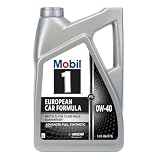

- The information below is per-pack only
- Mobil 1 FS European Car Formula full synthetic motor oil 0W-40 helps to extend engine life even in severe conditions
- Helps to control oxidation to prevent oil breakdown and maintain excellent viscosity for up to 10,000 miles between oil changes*
- Provides outstanding engine wear protection and performance with uniform synthetic oil molecules for better friction reduction
- Keeps your engine running like new by working to prevent damaging deposits and sludge buildup

- Our most advanced full synthetic 0W-40 engine oil, designed for unbeatable engine protection*
- Pennzoil Ultra Platinum comes with a 20-year, 750,000-mile warranty** to protect your engine and give you peace of mind to drive every mile as hard as you can
- Made with natural gas
- Outstanding performance in extreme temperatures
- Designed for high-performance engines, it helps protect engines from loss of power
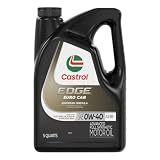
- 1.5X Better viscosity control to help engines run better for longer*
- 1.5X Better piston cleanliness to help maximize engine performance**
- As measured in DV6 test vs. test limits
- As measured in EP6CDT test vs. test limits
This product presentation was made with AAWP plugin.